Building a Local AI Chat Application and Integration with Siri
A complete guide to creating a privacy-focused AI chat interface, and getting your Siri a new personality
Project Overview
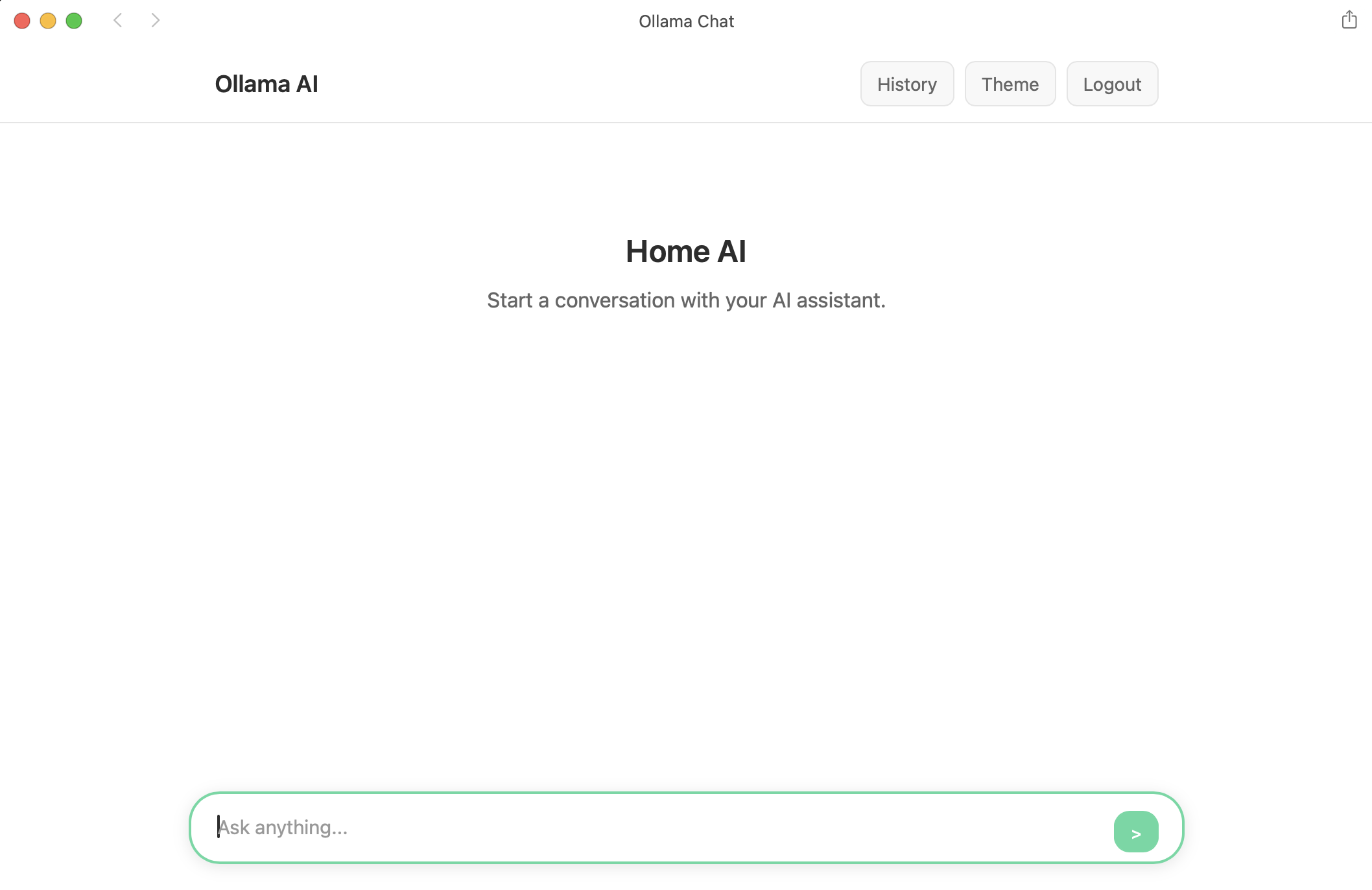
This project is a full-stack web application that creates a ChatGPT-like interface for interacting with locally-hosted AI models. Built using vanilla JavaScript, Node.js, and MongoDB, the application demonstrates how to integrate streaming AI responses, user authentication, and persistent chat history into a modern web interface.
The system runs entirely on a local network, allowing multiple users to have private conversations with an AI assistant through their web browsers. Users can create accounts, maintain separate conversation histories, and enjoy real-time streaming responses - all while keeping their data completely local.
Technical Implementation
Frontend Architecture
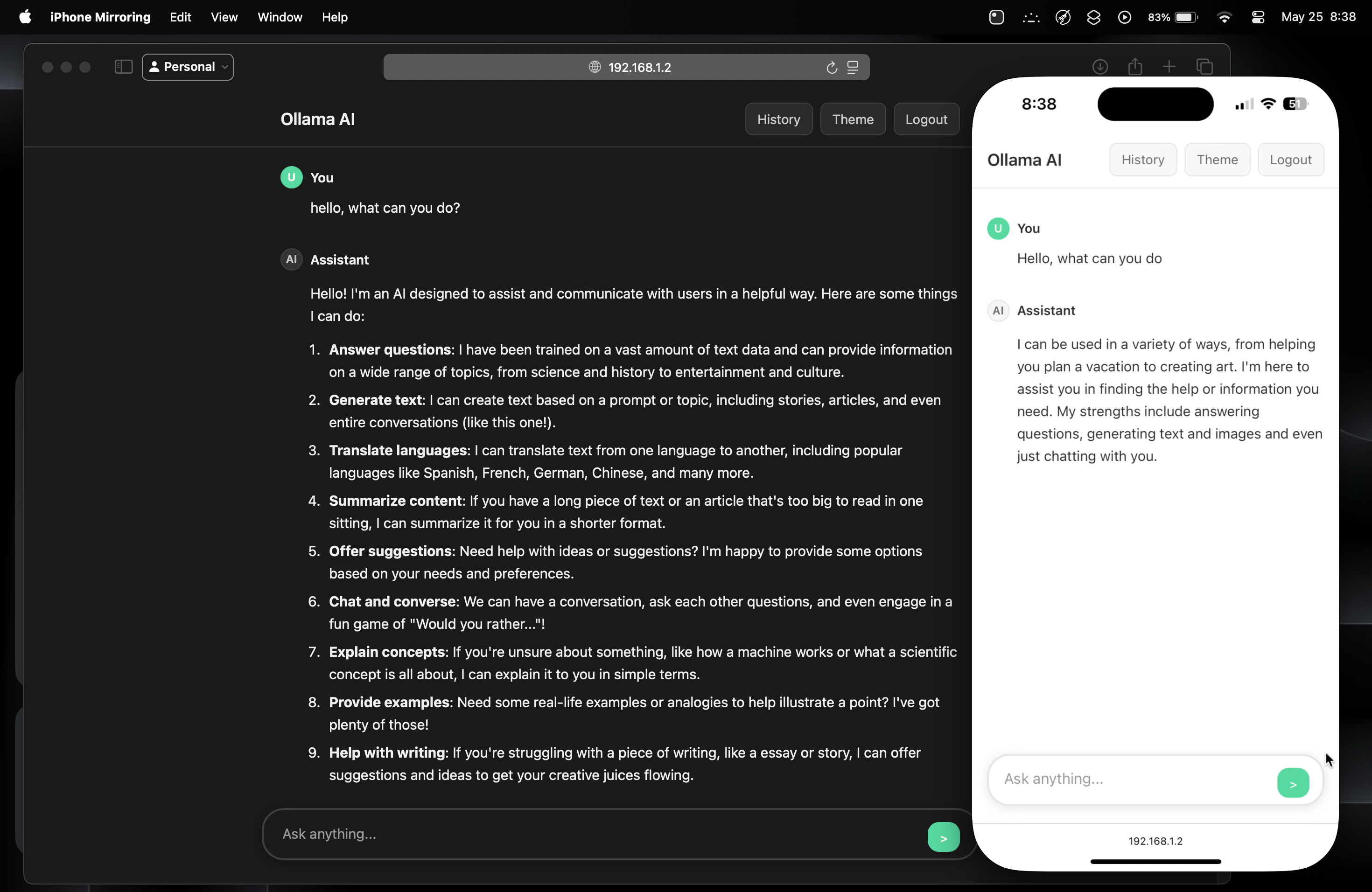
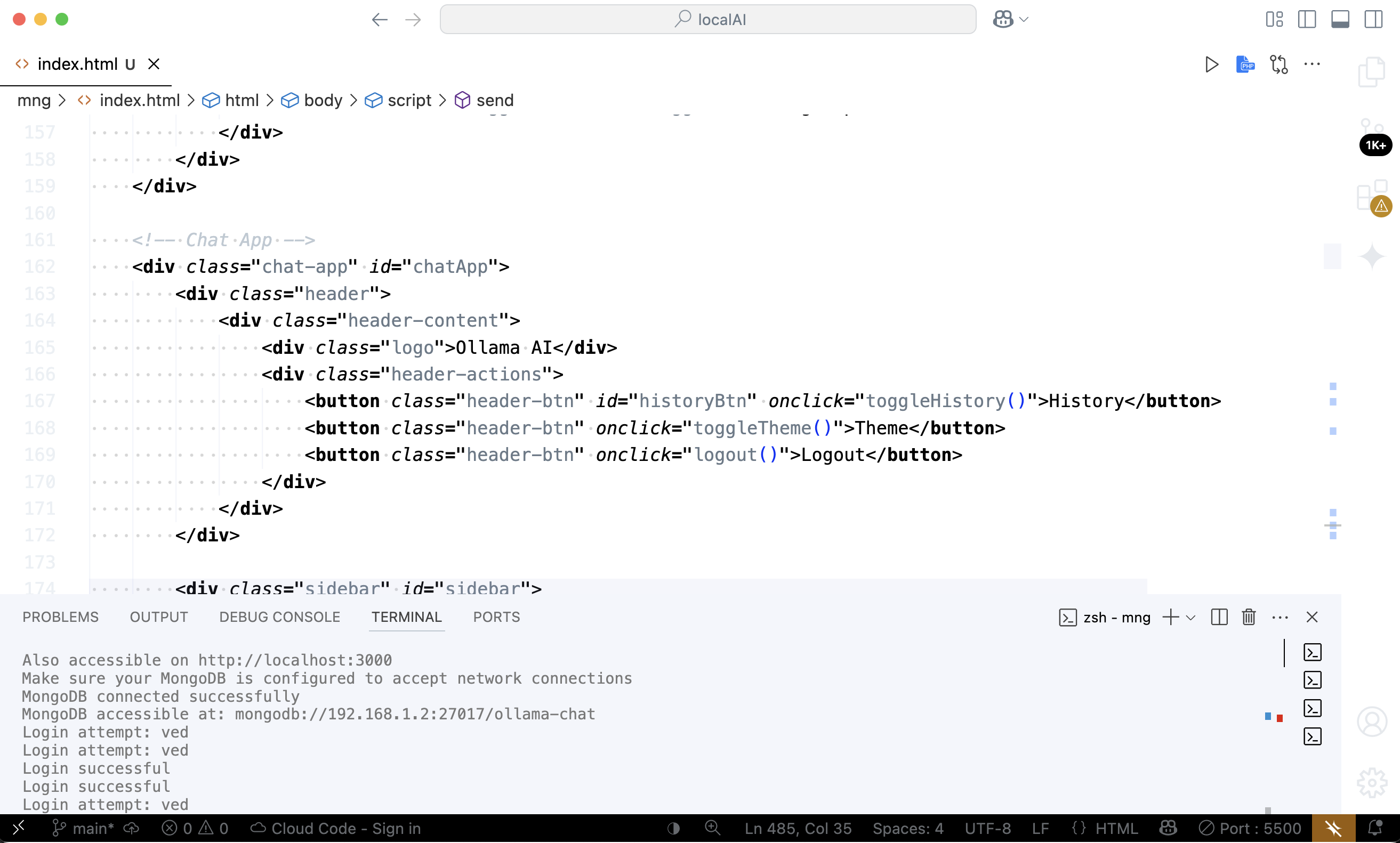
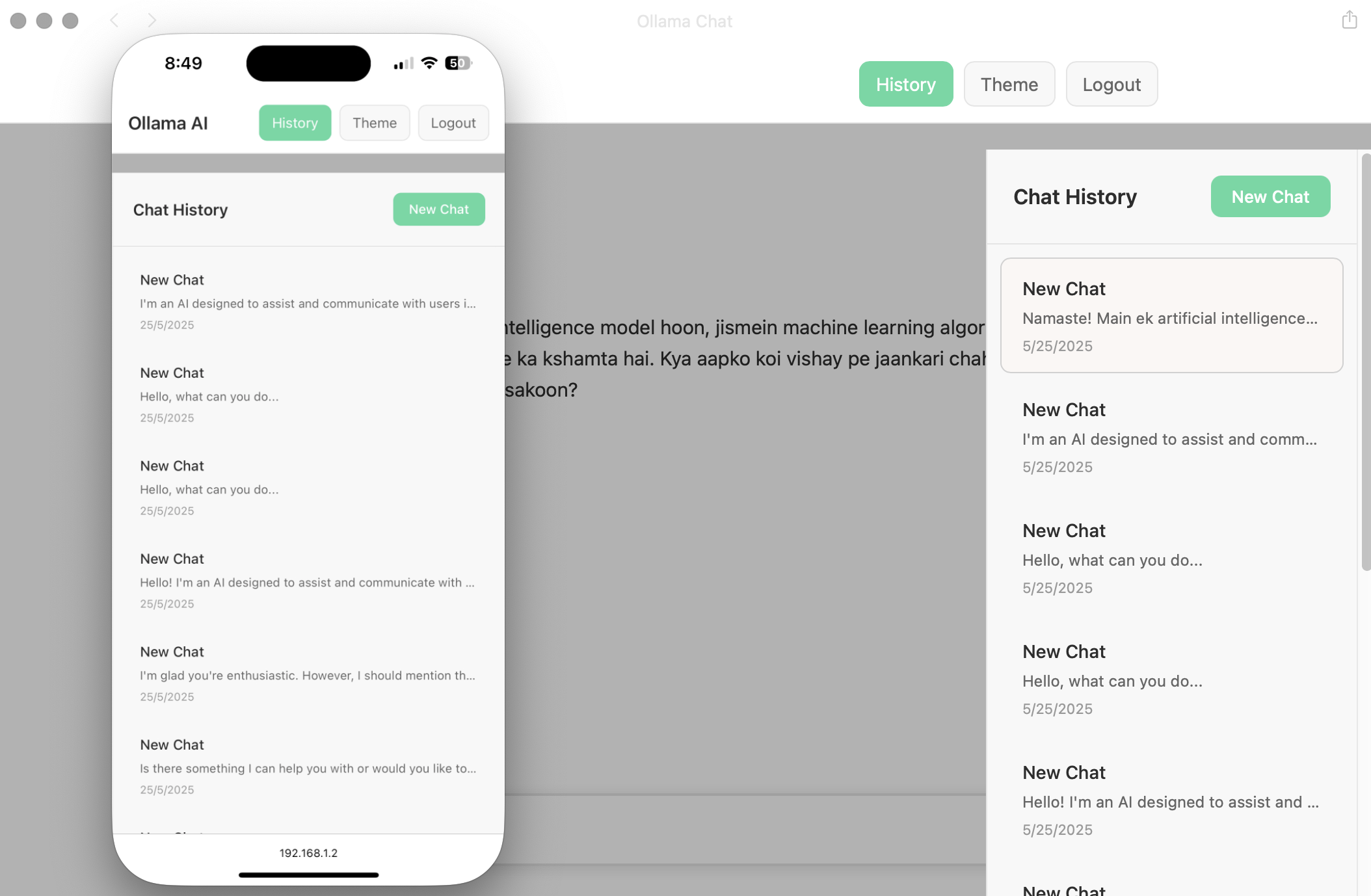
The frontend is built with vanilla JavaScript, HTML5, and CSS3, creating a responsive single-page application. The interface features:
- Authentication System: Login and registration forms with client-side validation
- Real-time Chat Interface: Message streaming with markdown rendering
- Responsive Design: Mobile-first approach that works across all device sizes
- Theme Support: Dark and light mode toggle
- Chat History Sidebar: Easy navigation between different conversations
The JavaScript architecture separates concerns cleanly:
// Authentication handling
document.getElementById('loginForm').onsubmit = async (e) => {
    e.preventDefault();
    const username = document.getElementById('loginUsername').value;
    const password = document.getElementById('loginPassword').value;
    // Handle login logic...
};

// Real-time streaming implementation
const reader = res.body.getReader();
const decoder = new TextDecoder();
while (true) {
    const { done, value } = await reader.read();
    if (done) break;
    // Process streaming response...
}
Backend Development
The backend is built with Node.js and Express, providing a RESTful API that handles:
User Authentication
- Secure password hashing with bcrypt
- Session management
- Input validation
Chat Management
- Creating and retrieving conversations
- Storing message history
- Real-time message persistence
Network Configuration
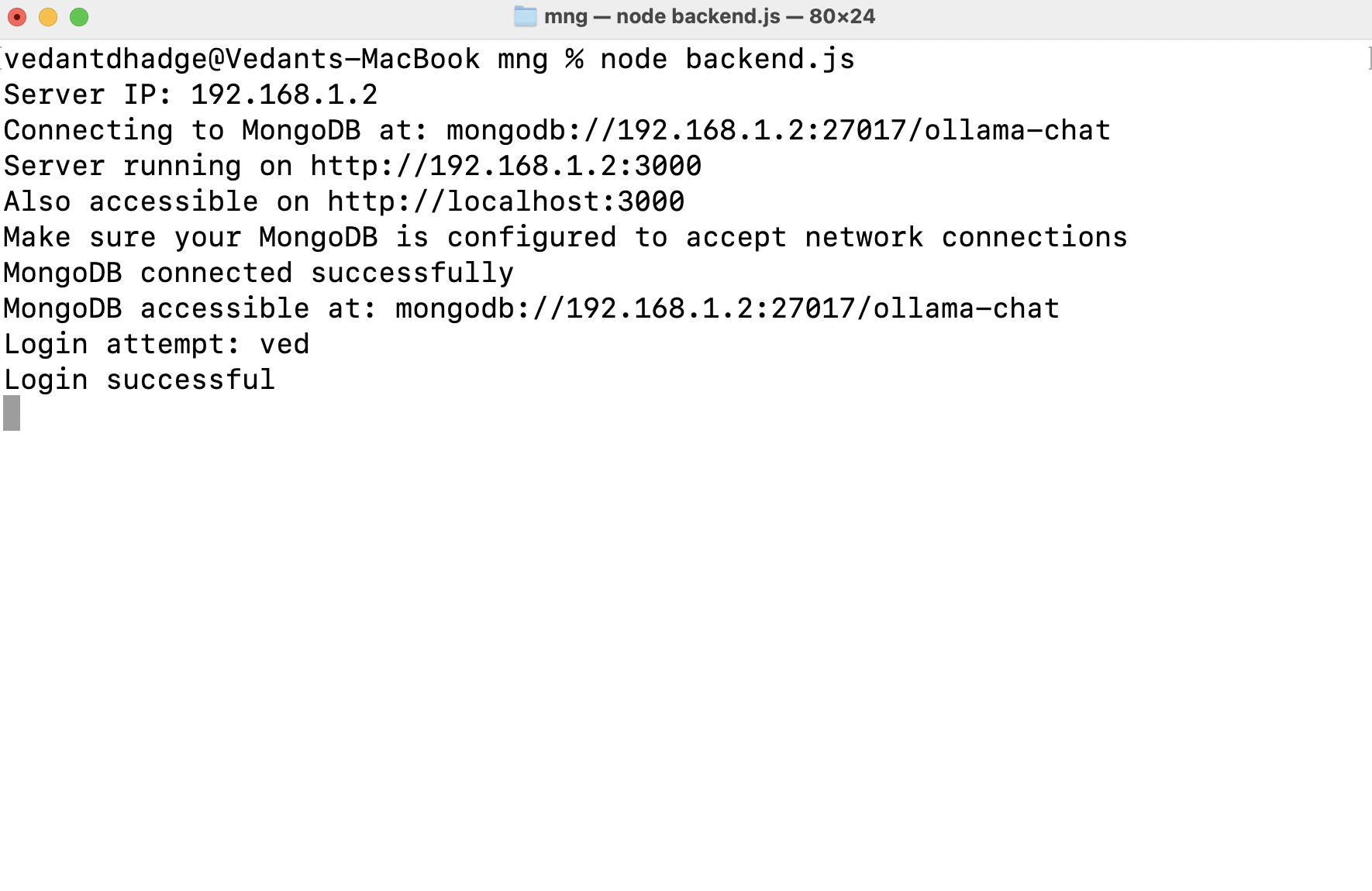
- Dynamic IP detection for local network access
- CORS configuration for cross-origin requests
- Multi-interface binding
// Dynamic IP detection for network accessibility
function getLocalIPAddress() {
    const interfaces = os.networkInterfaces();
    for (const name of Object.keys(interfaces)) {
        for (const interface of interfaces[name]) {
            if (interface.family === 'IPv4' && !interface.internal) {
                return interface.address;
            }
        }
    }
    return 'localhost';
}
Database Design
MongoDB is used to store user accounts and chat histories. The schema design is optimized for chat applications:
const chatSchema = new mongoose.Schema({
    userId: { type: mongoose.Schema.Types.ObjectId, ref: 'User', required: true },
    title: { type: String, default: 'New Chat' },
    messages: [{
        content: String,
        isUser: Boolean,
        timestamp: { type: Date, default: Date.now }
    }]
}, { timestamps: true });
AI Integration
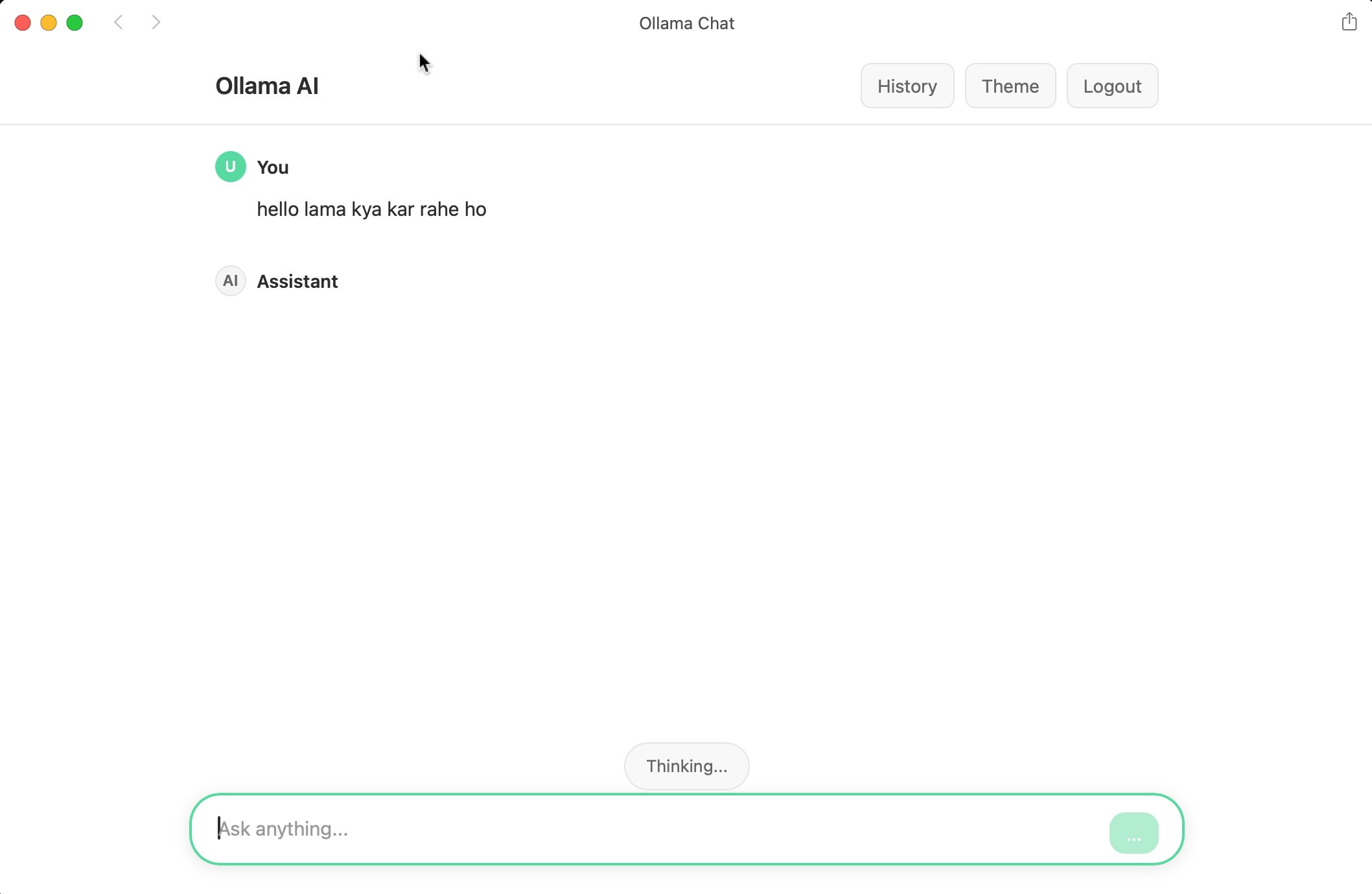
The application integrates with Ollama to run Llama 3.1 locally. The streaming implementation provides real-time responses:
const res = await fetch(`${OLLAMA_BASE}/api/generate`, {
    method: 'POST',
    headers: { 'Content-Type': 'application/json' },
    body: JSON.stringify({
        model: 'llama3.1',
        prompt: userMessage,
        stream: true
    })
});
Setup and Deployment
The application consists of four main components that need to be configured:
1. Ollama (AI Model Server)
OLLAMA_HOST=0.0.0.0:11434 OLLAMA_ORIGINS="*" ollama serve2. MongoDB (Database)
mongod --dbpath /path/to/mongodb --bind_ip 0.0.0.03. Backend Server
node backend.js4. Frontend Server
http-server . -p 8000 -a 0.0.0.0Technical Challenges Solved
Streaming Response Implementation
One of the main challenges was implementing smooth real-time streaming of AI responses. The solution involved using the Fetch API's ReadableStream to process chunked responses and update the UI incrementally.
Cross-Device Accessibility
Making the application accessible across different devices on the same network required configuring all services to bind to network interfaces rather than just localhost, along with implementing dynamic IP detection.
Responsive Chat Interface
Creating a chat interface that works well on both desktop and mobile required careful CSS architecture using flexbox and grid layouts, along with responsive typography and spacing.
Why Build This?
This project addresses growing concerns about data privacy in AI interactions. By running everything locally, families can give children and elderly relatives access to AI assistance without worrying about sensitive conversations being stored on external servers. Whether it's homework help, health questions, or personal conversations, everything stays within the home network.
What I Learned
Building this application provided hands-on experience with:
- Full-stack JavaScript development
- Real-time data streaming
- User authentication and session management
- Database design and optimization
- Network configuration and cross-device compatibility
- AI model integration and prompt engineering
- Responsive web design principles
The project demonstrates how modern web technologies can be combined to create sophisticated applications that prioritize user privacy while maintaining excellent user experience.
Integrating AI into Siri
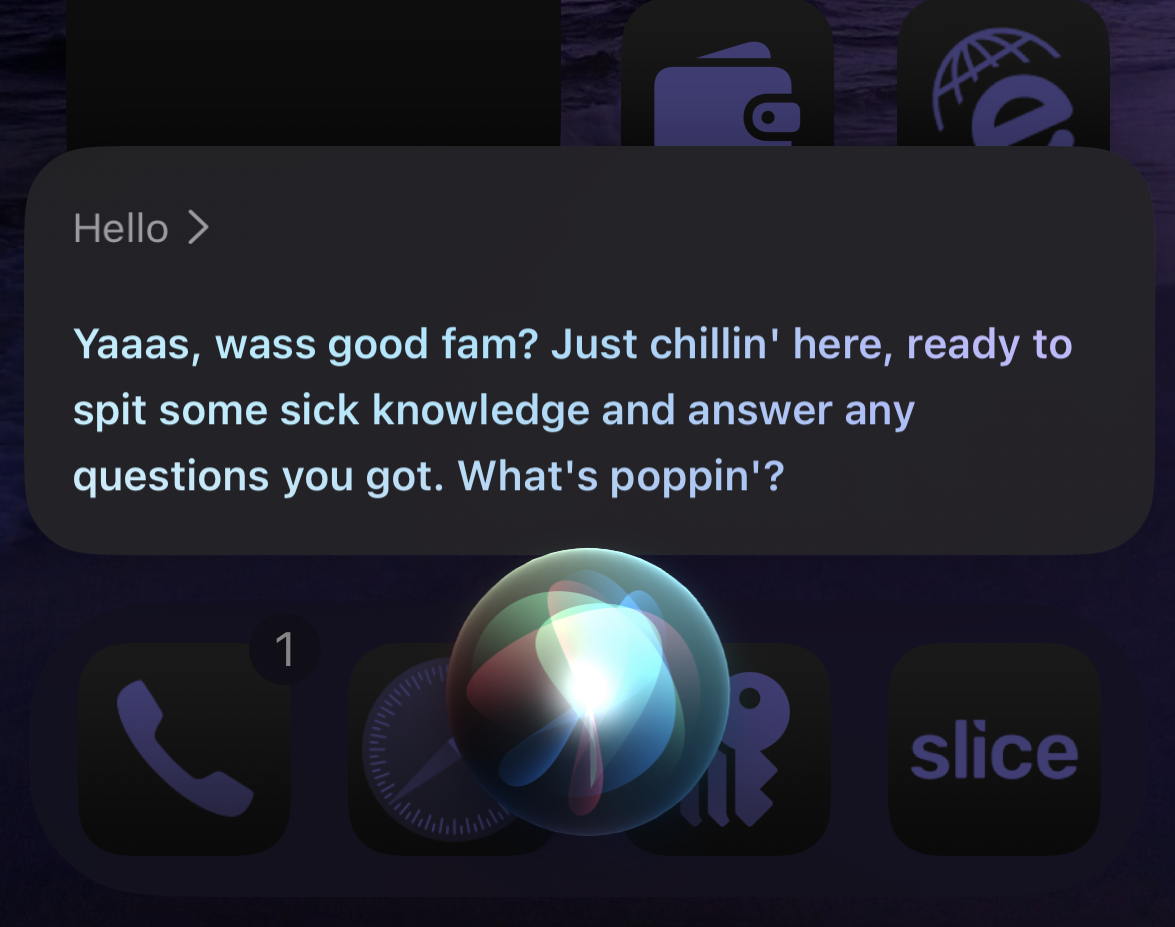
Building on the local AI server setup, I extended the project by integrating the Llama model directly into Siri using Apple Shortcuts. This creates a completely voice-driven AI assistant that leverages the same local infrastructure while providing hands-free interaction.
How It Works
The integration uses Apple's Shortcuts app to create a seamless voice interface that bridges Siri with your local AI server:
- Voice Input: Siri captures and transcribes your spoken question using Apple's speech recognition
- Text Processing: The transcribed text is formatted and prepared for the API request
- API Request: The shortcut sends the text to your local Ollama API endpoint using "Get Contents of URL"
- Response Processing: The AI response is received and parsed from the JSON response
- Voice Output: Siri speaks the AI's response back to you using text-to-speech
Technical Implementation
Shortcut Configuration
The Apple Shortcut uses the "Get Contents of URL" action to communicate with your local Ollama server:
// Shortcut API Configuration
URL: http://[YOUR_MAC_IP]:11434/api/generate
Method: POST
Headers: Content-Type: application/json

Request Body:
{
    "model": "llama3.1",
    "prompt": "[Siri Input Text]",
    "stream": false,
    "options": {
        "temperature": 0.7,
        "max_tokens": 500
    }
}
Response Handling
The shortcut processes the JSON response and extracts the AI's answer:
// Response Processing in Shortcuts
1. Get Contents of URL (API call)
2. Get Value from Dictionary (key: "response")
3. Speak Text (output the AI response)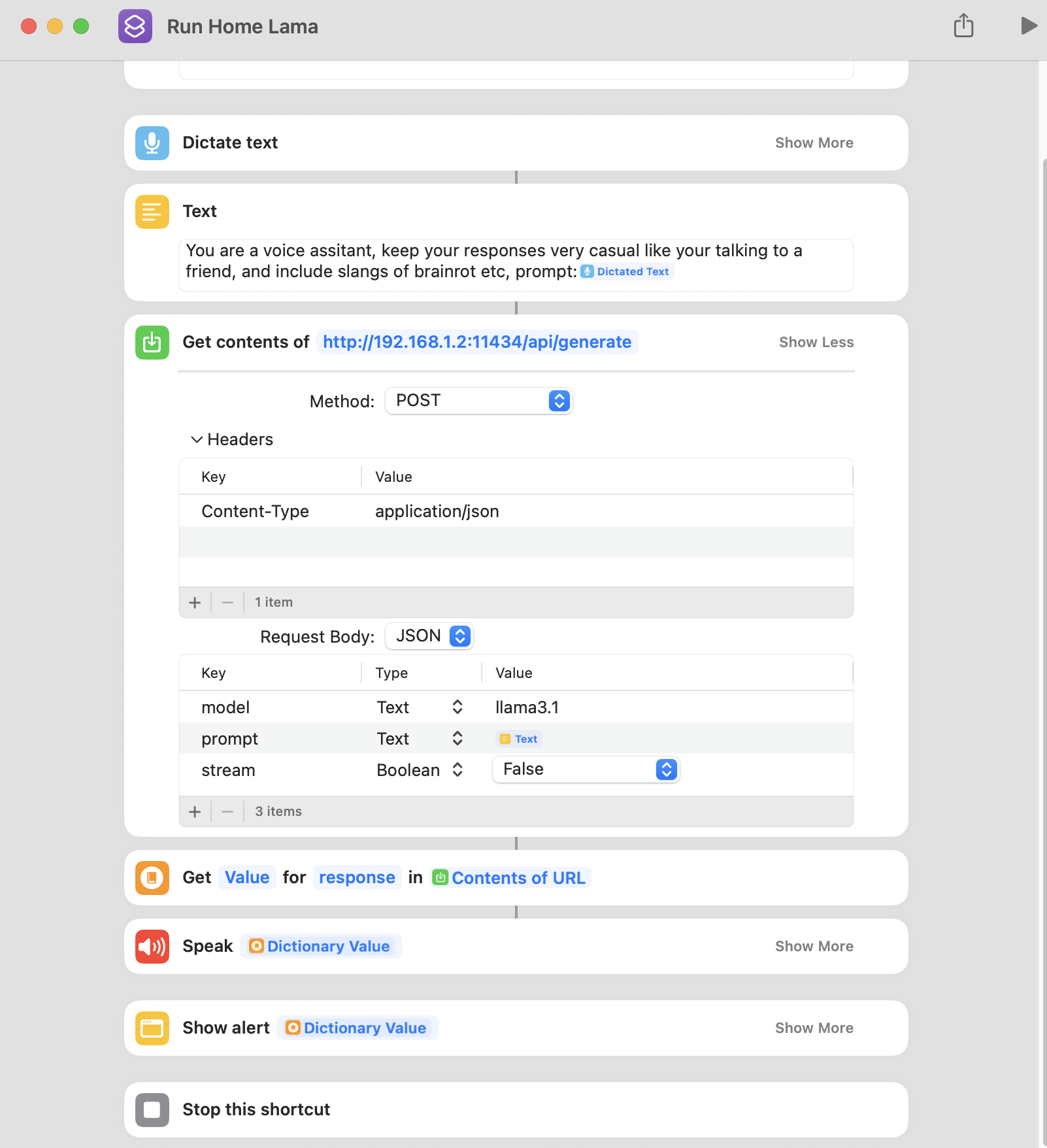
Network Requirements
Ensure your Ollama server is accessible across devices on your network:
# Start Ollama with network access
OLLAMA_HOST=0.0.0.0:11434 OLLAMA_ORIGINS="*" ollama serve

# Verify accessibility from other devices
curl http://[YOUR_MAC_IP]:11434/api/tags
Setup Guide
Prerequisites
- Ollama running on your Mac with network access enabled
- Llama 3.1 (or your preferred model) downloaded and ready
- Apple device with Shortcuts app installed
- Both devices connected to the same network
Step-by-Step Setup
- Configure Ollama for Network Access
OLLAMA_HOST=0.0.0.0:11434 OLLAMA_ORIGINS="*" ollama serve - Find Your Mac's IP Address
ifconfig | grep "inet " | grep -v 127.0.0.1 - Create New Shortcut
- Open Apple Shortcuts app
- Tap "+" to create new shortcut
- Name it "Ask AI" or similar
- Add Actions to Shortcut
- Add "Ask for Input" (Speech input)
- Add "Get Contents of URL"
- Configure URL and request body
- Add "Get Value from Dictionary"
- Add "Speak Text"
- Configure Siri Phrase
- In shortcut settings, add to Siri
- Set trigger phrase: "Ask AI"
Benefits and Features
Privacy and Security
- Completely Local: No data leaves your network
- No Cloud Dependencies: Works without internet connection
- Family-Safe: Children can use AI assistance safely
- No Subscriptions: One-time setup, no recurring costs
Multi-Device Access
- iPhone/iPad: Works through Siri on all iOS devices
- Apple Watch: Voice queries directly from your wrist
- Mac: Siri integration on macOS
- HomePod: Hands-free AI throughout your home
- CarPlay: Safe AI assistance while driving
Natural Interaction
- Conversational: Feels like talking to a knowledgeable friend
- Hands-Free: Perfect for cooking, exercising, or driving
- Fast Response: Local processing means quick answers
Advanced Customization
Multiple AI Personalities
Create different shortcuts for specialized AI assistants:
- "Ask Teacher": Educational queries with simple explanations
- "Ask Coder": Programming help and debugging
- "Ask Chef": Cooking tips and recipe suggestions
- "Ask Writer": Creative writing and storytelling
Custom Prompting
Modify the API request to include system prompts:
{
    "model": "llama3.1",
    "prompt": "You are a helpful cooking assistant. User question: [Siri Input]",
    "stream": false,
    "system": "Always provide practical, safe cooking advice."
}
Troubleshooting
Common Issues
Connection Problems
- Verify Ollama is running with network access
- Check firewall settings on your Mac
- Ensure devices are on the same network
- Test API endpoint with curl or browser
Shortcut Not Responding
- Check URL format and IP address
- Verify JSON request structure
- Test with a simple request first
- Enable shortcut debugging mode
Poor Voice Recognition
- Speak clearly and at moderate pace
- Use consistent trigger phrases
- Train Siri with your voice in Settings
- Minimize background noise